Creative tools
How to create an illustrated avatar for your profile
An illustrated avatar can give a profile, team directory or presentation a recognisable face without using a photograph. The strongest choice is usually simple: a clear silhouette, a friendly expression and colours that still work at a small size. Studio’s avatar generator lets you begin with a finished look and change the details. Here is how to make a useful profile image rather than just a colourful preview.
Decide what the avatar needs to do
A profile picture appears in different places: a small circle next to a message, a team card on a website or a larger introduction slide. Think about the smallest version first. Details that look attractive in a large preview can disappear when the image is reduced. A recognisable hairstyle and a clear face usually matter more than a lot of decoration.
Choose an illustration for yourself, a fictional demonstration user or a team member who has agreed to its use. Do not use an avatar to suggest you are another real person. For a business profile, the picture should support the name and role shown beside it, rather than make an unsupported claim about identity or qualifications.
Begin with a look, then customise it
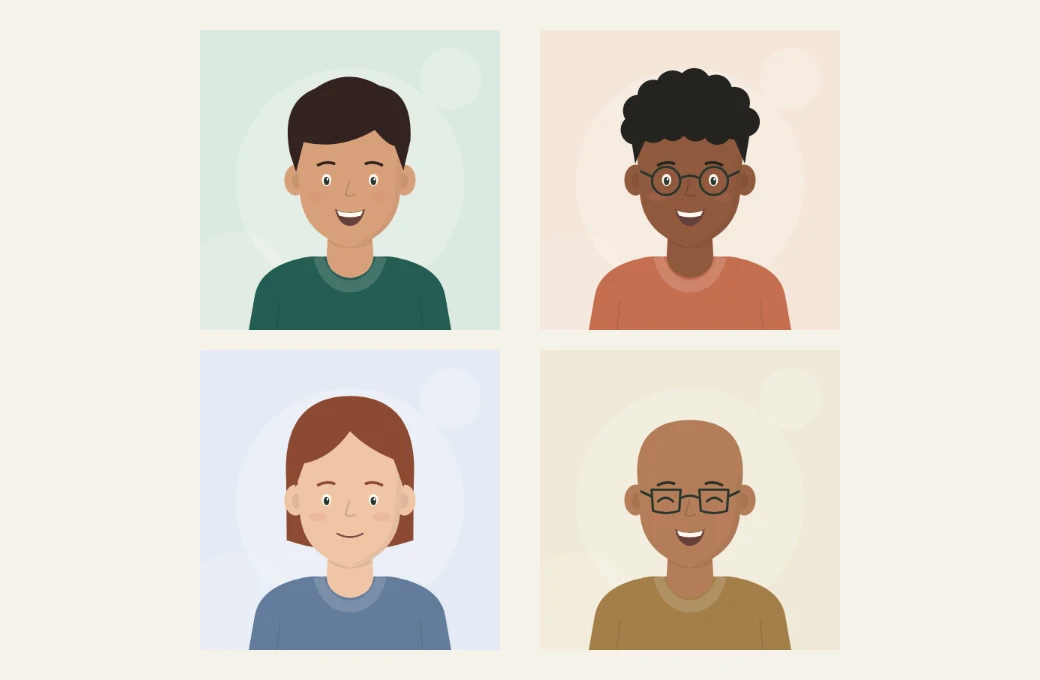
Open the avatar generator and choose one of the four starting looks. These are editable examples, not fixed characters. A starting point lets you judge the overall balance before changing individual colours. If you prefer to explore, the Surprise me control changes a set of appearance choices without asking for a photograph.
Try the six hairstyle choices and compare the silhouette. Swept, cropped, curly, bob, long and bald each change the outline around the face. Select a style that feels right for the intended use, rather than trying to reproduce every detail of a real haircut. The tool creates a stylised illustration from your selections; it does not analyse a face or produce a photographic likeness.
Match the expression and glasses to the purpose
Classic, Friendly and Bold give you different facial expressions. Compare them at the size your audience will see. A wide smile can work well for an informal profile, while a quieter expression may suit a restrained team directory. There is no single correct choice; the aim is a clear and consistent character.
Round and square glasses change the face noticeably. Check that the frames remain distinct from the hair and background colours. If you are creating a coordinated set for a team, use the same overall illustration style and let each person choose their own appearance. A shared visual system does not require everyone to have the same expression, skin tone or hairstyle.
Choose colours with enough separation
Set the skin tone, hair, clothing and background with the colour controls. Start with colours that you can distinguish easily. Dark hair on a very dark background can weaken the silhouette, while clothing close to the background colour can make the shoulders disappear. A quieter background often helps the face remain the focal point.
You can use a brand colour for clothing or the backdrop without applying it everywhere. For example, a muted green shirt can connect the portrait to a business identity while leaving the skin and hair natural to the illustration. If the avatar sits beside a strong logo, let one element lead. Too many competing colours can make a small profile area feel busy.
Check the square and the likely circular crop
Studio downloads a square avatar. Many profile services display that square inside a circle or another shaped frame. Those services decide their own crop, so preview the image there before considering the job finished. Keep the face central and check that hair and glasses remain visible. The shoulders may be cropped more heavily than they are in the original square.
The name or initials field adds a small personal detail to the clothing. It is not a replacement for the profile name displayed by the platform, and it may not remain readable in a tiny circle. Leave it blank if you prefer a simpler portrait. Avoid entering private information that does not belong in a public profile picture.
Download a sharp PNG and keep a useful filename
The generator exports a 1024 × 1024 PNG. Use Download PNG, then open the actual file and check the result. A larger source is useful when you need a smaller profile version, but the destination may resize or compress it. Check the destination’s current upload requirements rather than assuming every service uses the same limit.
Name the file so you can recognise it later. If you make several team portraits, use a consistent folder and file naming pattern that respects each person’s privacy. Our PNG, JPG and PDF guide explains why a finished image is different from an editable design project. Do not repeatedly recompress the portrait if the original PNG is available.
Use the portrait consistently across your designs
A finished avatar can introduce the person behind a short guide, mark a fictional user in a presentation or add a friendly face to a social graphic. Place it with enough breathing room and keep nearby text readable. For a business announcement, our social post guide shows how to give the picture and the message separate roles.
Explore the template gallery for a suitable layout or return to everyday tools for the next small task. If you are publishing a coordinated set, review all the portraits together before sharing them. Consistent framing and background treatment will usually make a stronger group than changing every visual detail between people.
Questions & answers
Do I need to upload a photograph?
No. The illustration is drawn from the hairstyle, expression, glasses and colour choices you select.
What size is the download?
The avatar downloads as a 1024 × 1024 PNG. A destination service may resize or crop it.
Can I make a matching team set?
Use consistent framing and colours while allowing each person to choose their appearance. Obtain their agreement before using a portrait to represent them.
Are my colour and name choices sent to a server?
The generator draws the avatar in your browser. The choices used for this tool are not uploaded for drawing.
Can I use it as proof of identity?
No. It is a stylised illustration and should not be presented as an identity-verification image or used to impersonate someone.
Try an idea of your own.
Explore templates, photo tools and everyday utilities, or return to all creative guides.