Design ideas
How to create social media posts for a small business
A useful social post starts with one thing you want someone to understand. It might be a new opening time, a product arriving on Friday or the invitation to a workshop. A clear message and a recognisable photograph usually do more work than a crowded design. This guide walks through a practical small-business post, from the brief to the downloaded file.
Start with one job for the post
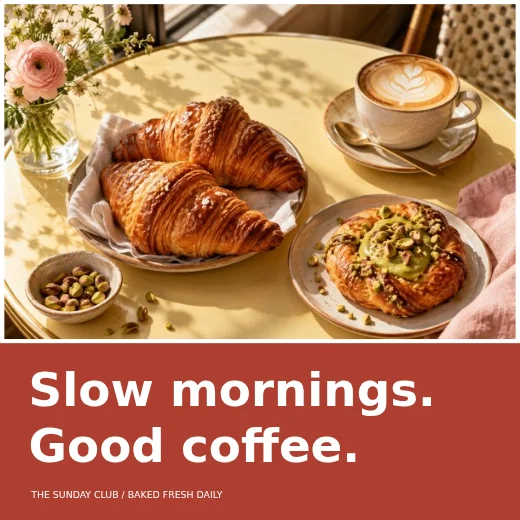
Before opening a template, finish this sentence: after seeing this, I want someone to know or do what? For a bakery, the answer might be “know that Sunday opening starts this week”. That is more useful than trying to announce opening hours, a new menu, a loyalty card and a delivery service in one square. Write the main message in ordinary language. Then add the information a customer needs to act: the day, time, location or next step.
Separate the message from background information. “Open Sundays, 9–1” belongs on the design. A longer explanation of why you changed your hours can sit in the caption. This gives the image a clear purpose and leaves room for a photograph to feel inviting.
Choose a starting point that fits
Open the design templates and look for a layout with the right balance of image and words. The bakery example shown here has an obvious headline and a real photo, so it suits a simple announcement. An invitation or information-heavy flyer has a different job. Choose a template because its structure helps your message, rather than because every decorative detail already matches your brand.
You can also begin in the social post maker. Use the format you intend to publish, then make the text and picture your own. Do not stretch a square design into a wide banner and expect the composition to stay balanced. For a different shape, begin with a suitable format from the design tools page.
Build a simple order of importance
Give the most important words the strongest visual position. A customer should see the announcement first, the useful details next and the brand last. You do not need to make everything large or bold. If the headline, hours, address and logo all shout at once, the design has no clear reading order.
Try a short headline, one supporting line and a small final detail. Leave visible space between them. Use colour or weight to distinguish a key date instead of adding another font. If you are unsure whether a line belongs, cover it temporarily and ask whether the message still works. A design often improves when a non-essential sentence moves into the caption.
Use a photograph with a purpose
Choose an image that shows the actual thing you are talking about where possible. A well-lit picture of the product, workspace or finished work is easier to understand than unrelated stock imagery. Check the crop before placing words over it. A face, product label or important detail should not disappear at the edge of the frame.
The crop image tool can help remove distracting edges. If you need an isolated product, read our background removal guide before cutting it out. Keep a copy of the original image so you can revisit a crop. For text over a photo, choose a quiet area or use a solid panel; a beautiful busy photograph can still be a poor background for small lettering.
Make it readable at phone size
Zoom out and imagine the post in a small feed. Can you still read the headline without leaning towards the screen? Pale lettering on a pale photograph, narrow type and long lines are common problems. A stronger background contrast and fewer words are usually better fixes than a heavy text shadow.
Keep the contact detail or call to action short. “Visit us Sunday” is easier to scan than a paragraph asking people to browse everything. Read the message aloud to catch missing words and check names, dates and times against the source. If the design includes a price or offer, make sure it is current and that any important conditions are easy to find. Avoid publishing a template’s sample details by mistake.
Download the right copy
Choose an image format supported by the place you will publish. PNG is useful for crisp lettering and flat graphics; JPG can make a smaller file for a photograph-led post. The best choice depends on the design and the platform. Our PNG, JPG and PDF guide explains the differences without assuming every file needs the largest export.
Open the downloaded file before uploading it. Confirm the crop, edges, spelling and text size in the actual export, rather than relying only on the editor preview. Keep an editable project copy if you want to reuse the layout next week. Naming the file around its purpose, such as sunday-opening, makes it easier to find than a series of files called final.
Reuse a system without repeating the same post
Once you have a layout that works, keep a few consistent elements: a familiar heading style, a small group of colours and the position of a logo. Change the photograph and message to suit each post. Consistency helps recognition; it does not mean using an identical image for every announcement.
Plan a small set around real customer questions: what is new, when are you open, how is something made and what should someone do next? Make each post answer one question. A simple routine is easier to maintain than redesigning everything from scratch. Return to your design workspace with a clear message and one suitable image, then build from the structure you already know works.
Questions & answers
Do I need an account to make a post?
Individual Studio design tools and downloads are free to use without an account. Optional cloud saving is a separate feature.
Should every post use the same template?
Keep a recognisable style, but choose a layout suited to the message. A short announcement and an event timetable need different amounts of space.
Can a bigger export fix a blurry photo?
A larger pixel size does not restore detail missing from the original. Choose a sharper source photo and check the final crop.
Can I use my own brand logo?
Yes, if you own it or have permission. Check that the logo remains readable at the size used in the post.
Where should I start?
Browse the templates or open the social post maker, decide on one message and replace the example words and image before downloading.
Try an idea of your own.
Explore templates, photo tools and everyday utilities, or return to all creative guides.